
SET UP YOUR HYPR eSIM
From QR code to connected.
Choose your phone below. Install the eSIM, then check your mobile data and roaming settings before using it.
Download the full illustrated PDF for offline useBefore you start
- Your phone must be eSIM compatible. Please check before purchasing.
- Connect to Wi-Fi or another working internet connection to download the eSIM.
- Install on the day you intend to use it to avoid unintended early activation. A regional plan may connect in your home country if that country is included.
- Scan within the 30-day deadline supplied with your order. Do not leave installation until after expiry.
- An eSIM can only be installed on one device. Do not delete it or try to move it to another phone unless support tells you to.
- Daily plans follow the destination's local calendar day, not a rolling 24-hour period. After the high-speed allowance is used, applicable plans slow to 128kbps.
Menu names and screens vary by device and software version. The illustrations below are examples from our PDF guide.
IPHONE / iOS
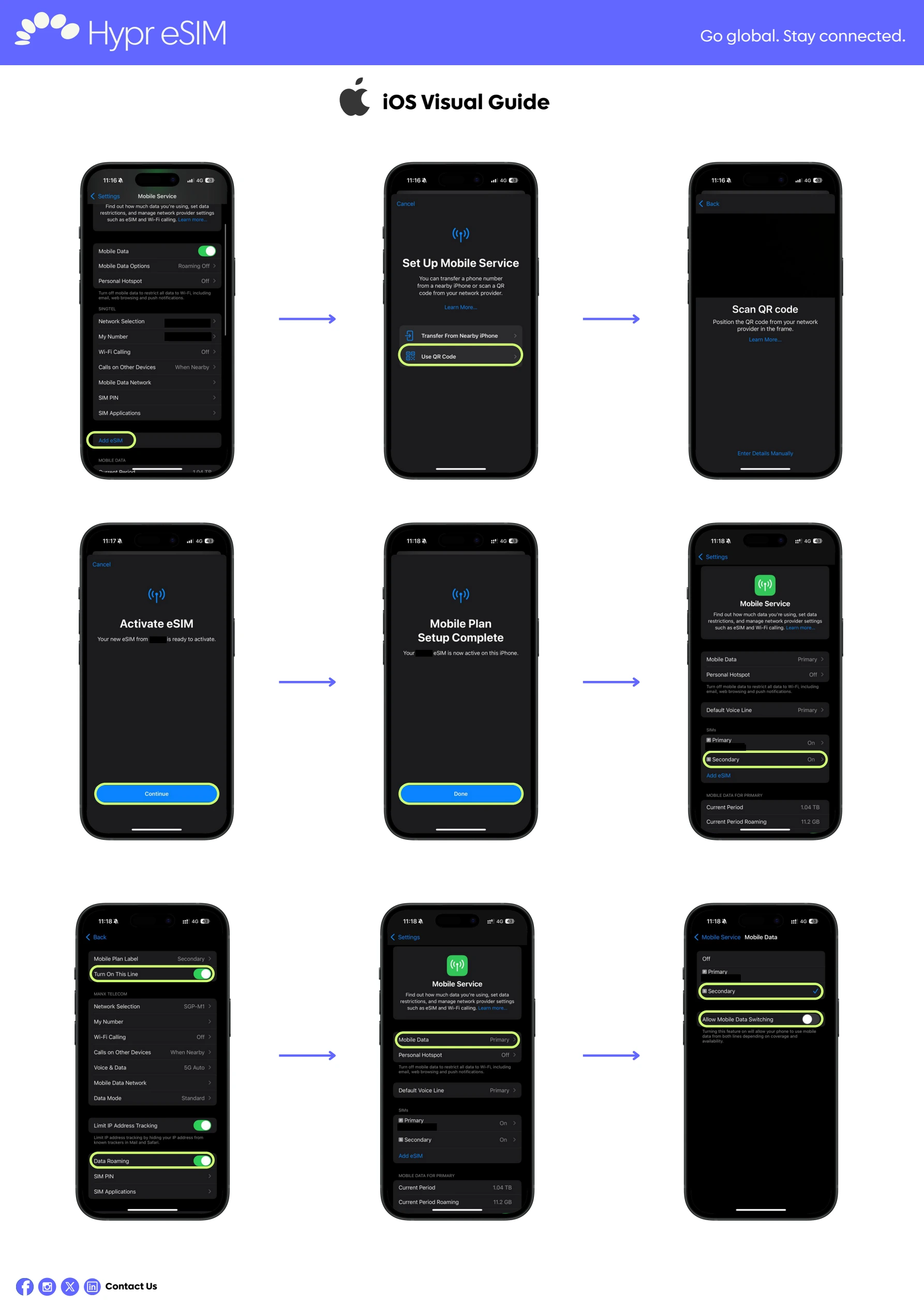
Install on your iPhone
1. Scan your QR code
- Open Settings → Mobile Service / Cellular → Add eSIM.
- Choose Use QR Code and scan the QR provided with your order. Display it on another screen if needed.
- Check the confirmation screen, tap Activate eSIM, then Continue.
- Choose a label for the travel eSIM and follow the remaining on-screen instructions.
Can’t scan? Install manually instead
- Open Settings → Mobile Service / Cellular → Add eSIM → Use QR Code.
- Tap Enter Details Manually at the bottom of the screen.
- Enter the SM-DP+ Address and Activation Code supplied for your eSIM, then tap Next. If those details are missing, ask support rather than guessing.
- Check the confirmation screen. Tap Activate eSIM, then Continue, choose a label and complete the on-screen instructions.
2. Configure mobile data
- Return to Settings → Mobile Service / Cellular and select the newly installed eSIM.
- Enable Turn On This Line, then turn on Data Roaming for the travel eSIM.
- Check that it connects to a supported network. If needed, open Network Selection, turn off automatic selection and choose the operator specified for your plan.
- Under Mobile Data / Cellular Data, select the travel eSIM. Turn off Allow Mobile Data Switching to avoid falling back to your primary SIM for data.
ANDROID
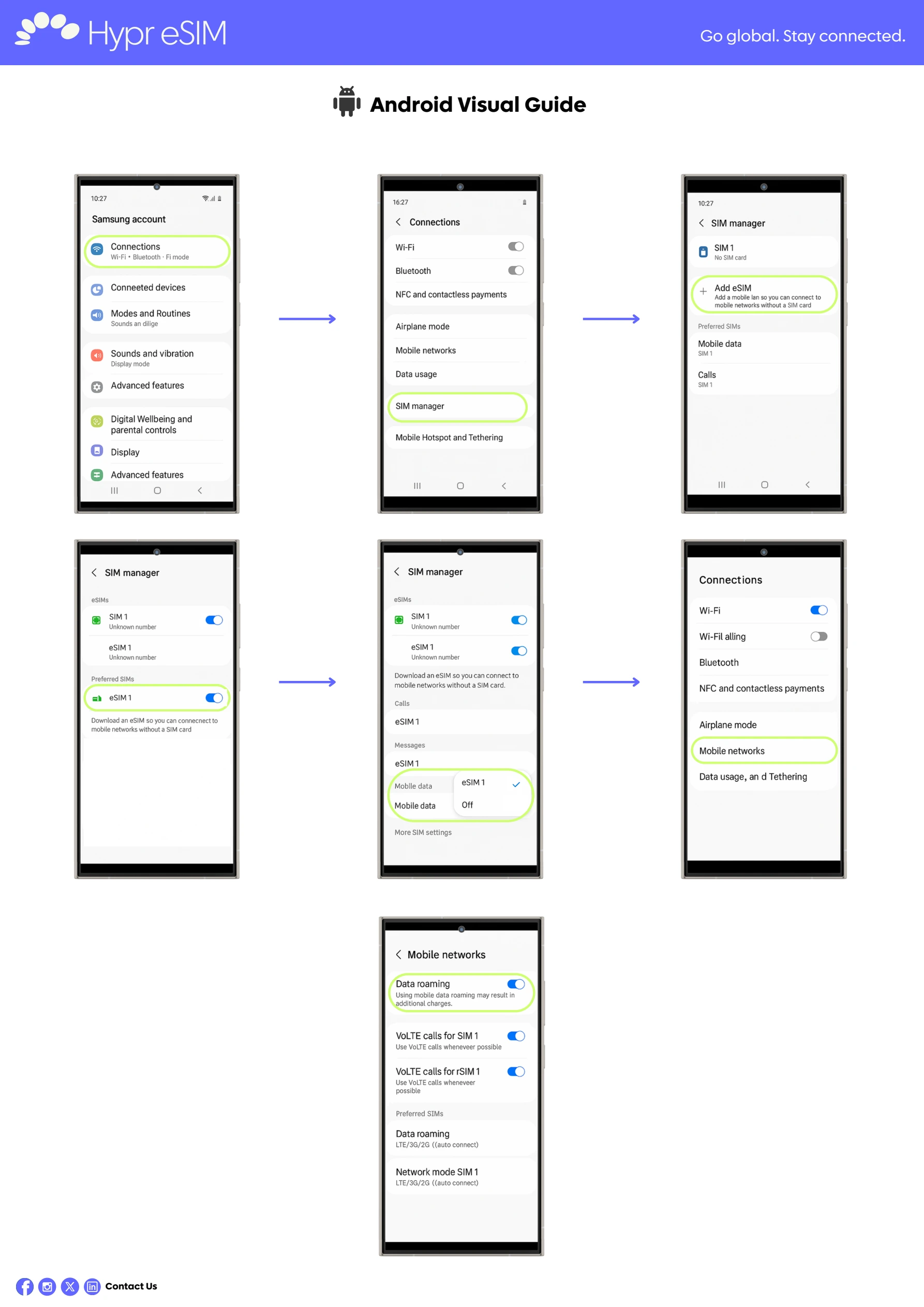
Install on your Android phone
The screenshots use Samsung. Other Android phones may call these settings Network & Internet, SIMs or SIM Manager.
1. Scan your QR code
- Open Settings → Connections / Network & Internet → SIMs or SIM Manager.
- Tap Add eSIM or Download a SIM instead, then Next if prompted.
- Scan the QR supplied with your order, tap Download and follow the remaining on-screen instructions.
Can’t scan? Install manually instead
- Open Settings → Connections / Network & Internet → SIMs or SIM Manager.
- Choose Add eSIM or Download a SIM instead, then Next if prompted.
- Select Need help? → Enter it manually, or the equivalent option on your phone.
- Enter the manual activation code supplied with your eSIM. Tap Continue → Download and complete the instructions. Ask support if no manual code was supplied.
2. Configure mobile data
- Select the newly installed eSIM in Settings and enable Use SIM if shown.
- Enable Mobile Data and Roaming for the travel eSIM.
- Ensure the travel eSIM is selected for mobile data, not your primary SIM.
- If the phone does not connect to a supported network, turn off Automatically select network and choose the operator specified for your plan.
Installed, but not connected?
Check that your destination is covered, your plan is valid, the travel eSIM is selected for mobile data and its data roaming is on. Try turning airplane mode on and off. Keep the eSIM installed while troubleshooting.
Check the network operator list · Troubleshoot your connection
For Shopee or Tokopedia purchases, contact us in your marketplace order chat and include your order ID. Website customers can contact Hypr support. Keep your QR and activation details private.